Appearance
Subdomain Routing Guide for CTFd Containers Plugin
1. Architecture Overview
Traditionally, container challenges are accessed via HOST:PORT (e.g., ctf.example.com:30001). Subdomain routing allows access via unique URLs (e.g., https://c-a1b2c3d4.ctf.example.com) without exposing ports on the host server.
NOTE
Why this architecture? This setup uses Cloudflare Tunnel + Traefik instead of simple port forwarding or direct Nginx to HIDE the Real Server IP. If exposing the real IP were acceptable, this could be much simpler. However, to protect the infrastructure from DDoS and direct attacks, we route all traffic through Cloudflare's Edge Network.
Traffic Flow:
- User visits
https://c-a1b2c3d4.example.com - Cloudflare DNS resolves to Cloudflare Tunnel.
- Cloudflare Tunnel forwards traffic to the
traefikcontainer. - Traefik reads the Host header (
c-a1b2c3d4.example.com), looks up the active Docker container with the matching UUID label, and routes the request to that container's internal port.
It is crucial to understand that the CTFd Plugin does NOT route traffic. It only "tags" containers. The routing infrastructure (Traefik + Cloudflare) does the rest.
Components & Roles
| Component | Role | Description |
|---|---|---|
| CTFd Plugin | Tagging | Generates a subdomain (e.g., c-abc12345) and attaches Docker labels to the challenge container. Tell Docker: "This container owns c-abc12345". |
| Traefik | Routing | The "Traffic Cop". It listens to Docker events. When it sees a container with the label traefik.http.routers..., it dynamically creates a route for it. |
| Cloudflared | Ingress | The "Tunnel". It safely exposes Traefik (port 80) to the public internet via Cloudflare Edge. |
2. Components
- Cloudflare Tunnel (
cloudflared): Exposes the local Traefik service to the internet without opening ports on your router/firewall. Handles SSL termination. - Traefik: A modern reverse proxy that listens to Docker events. It automatically reconfigures routing rules when a challenge container starts or stops.
- CTFd Plugin: Generates random subdomains and assigns specific Traefik labels to Docker containers when they are created.
3. Configuration Steps
Step 1: Docker Compose Setup
The setup depends on where your challenges run:
Scenario A: Local (All-in-One)
If CTFd and challenges run on the same server:
- Example compose file: docker-compose.samehost.yml.
- Ensure
traefikandctfdshare thectfd-network. - Settings: Traefik and Cloudflared must be running in this compose file.
Scenario B: Remote (SSH)
If CTFd runs on Server A, but challenges run on Server B:
- Server A (CTFd): Does NOT need Traefik/Cloudflared for challenges (only for itself if needed).
- Server B (Challenges): MUST run
traefikandcloudflared.- Example compose file: docker-compose.remote.yml.
- Create a
docker-compose.ymlon Server B with ONLYtraefikandcloudflared. - Network: Must enable
ctfd-networkso Traefik can see containers spawned by the plugin. - Settings: Plugin communicates via SSH, but Traefik routes locally on Server B.
- Traefik Version (Both cases): Use
v2.11(stable). - Docker API (Both cases): Set
DOCKER_API_VERSION=1.45environment variable for Traefik to work with modern Docker Engines (v25+). - Network: All services (
ctfd,traefik, challenge containers) must share a Docker network (e.g.,ctfd-network).
Step 2: Cloudflare Setup (Critical)
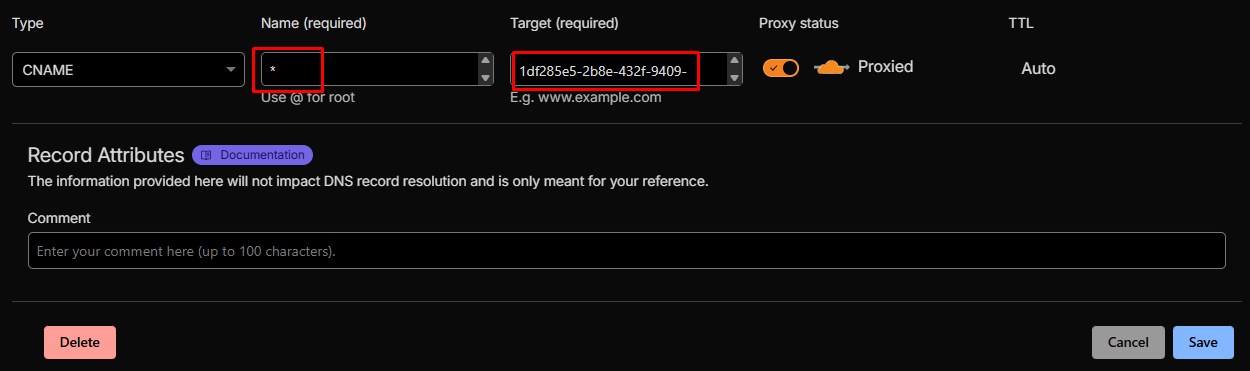
DNS Record:
- Go to Cloudflare Dashboard -> DNS.
- Create a CNAME record:
- Name:
*(Wildcard) - Required for Cloudflare Free SSL to work - Target: Your Tunnel URL (e.g.,
uuid.cfargotunnel.com) or your server domain if managing tunnel differently. - Proxy Status: On (Orange Cloud).
- Name:
Tunnel Configuration (Zero Trust Dashboard):
- Add a Public Hostname route:
- Public Hostname:
*.example.com(Wildcard) - Service:
http://traefik:80
- Public Hostname:
- Note: This tells Cloudflare to send ANY subdomain request for your domain to the Traefik container.

- Add a Public Hostname route:
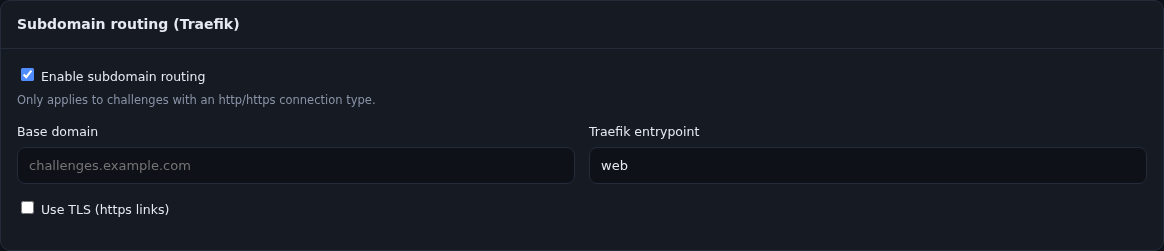
Step 3: Plugin Settings (CTFd Admin)
Go to Admin Panel -> Containers -> Settings:
- Enable Subdomain Routing: Checked.
- Base Domain: Enter your root domain (e.g.,
example.com).- Do not include
challenge.prefix if using Cloudflare Free plan (SSL limitations).
- Do not include
- Docker Network Name:
ctfd-network(Must match the network name indocker-compose.yml).
4. How It Works Internally
When a user starts a web challenge:
- Plugin generates a UUID (e.g.,
ac3fdbd9). - Plugin formats subdomain:
c-ac3fdbd9. - Plugin creates a Docker container with labels:yaml
traefik.enable: "true" traefik.http.routers.r1.rule: "Host(`c-ac3fdbd9.example.com`)" - Traefik detects the new container and creates a route.
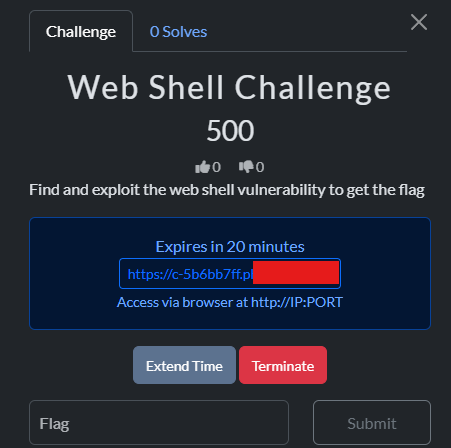
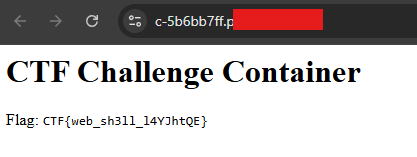
- Plugin returns the URL
https://c-ac3fdbd9.example.comto the user.
5. Troubleshooting
404 Page Not Found (from Cloudflare)
- Cause: DNS record missing.
- Fix: Create
*CNAME record in Cloudflare DNS.
404 Page Not Found (from Traefik)
- Cause: Traefik is running but cannot see the container or the route.
- Fix:
- Check if Traefik sees Docker:
docker logs ctfd-traefik-1. Look for API version errors. - Check container labels:
docker inspect <container_id>.
- Check if Traefik sees Docker:
SSL Handshake Failure / Privacy Error
- Cause: Using multi-level subdomain (e.g.,
abc.challenge.domain.com) on Cloudflare Free Plan. - Fix: Switch to single-level format (
c-abc.domain.com) by updating Plugin Settings "Base Domain" to root domain.
Docker API Error ("client version is too old")
- Cause: Mismatch between Traefik's default API version and Host Docker Engine.
- Fix: Add
DOCKER_API_VERSION=1.45(or higher) to Traefik environment variables indocker-compose.yml.
Settings Not Saving
- Cause: Frontend-Backend communication issue with unchecked checkboxes.
- Fix: Already patched in
assets/view.jsand template. Clear browser cache.